Lists and Todos in Bear
Return to support library
Bear provides a variety of list options to keep your note content organized and clean.
Types of lists
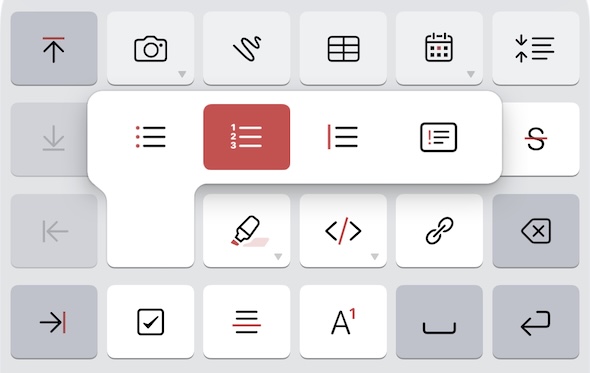
Bear supports three main styles of lists. You can create these using Markdown or Shortcuts. You can also insert lists quickly via BIU keyboard above the keyboard on iOS or at the top right corner of the editor on Mac.
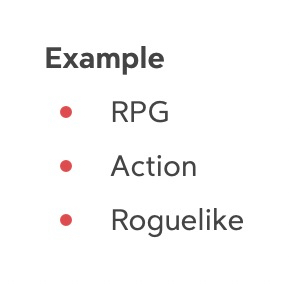
Unordered Lists
Unordered lists are best for simple collections of items where order doesn’t matter. To add an unordered list:
- Via BIU keyboard on iOS or BIU style bar on Mac
- Markdown: type *, -, or + followed by a space
- Shortcut: ⌘ L
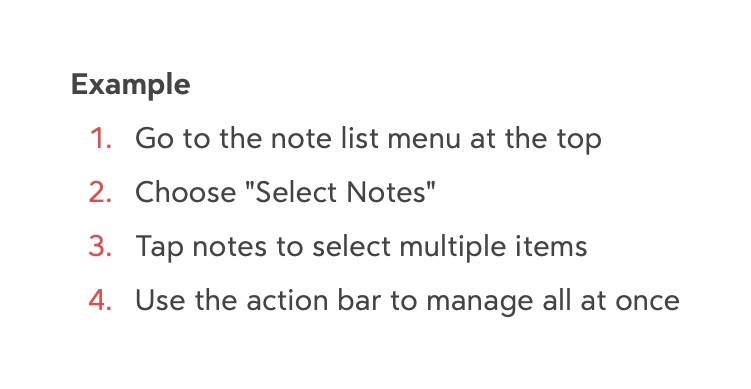
Ordered Lists
If you are writing a step-by-step instructions or rankings in your notes, ordered lists can help. You can start with any number in a ordered list and Bear will automatically increment the numbers as you press Return. To add an ordered list:
- Via BIU keyboard on iOS or BIU style bar on Mac
- Markdown: type 1. followed by a space
- Shortcut: ⇧ ⌘ L
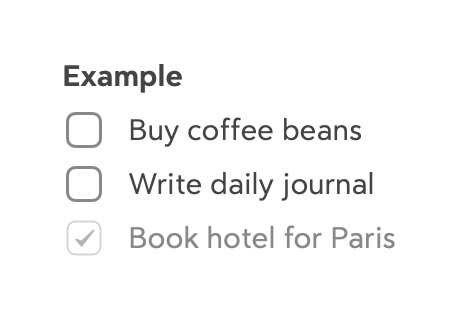
Todo Lists
Todo lists are ideal for grocery shopping or managing tasks. To start a todo list:
- Via BIU keyboard on iOS or BIU style bar on Mac
- Markdown: Type - followed by a space
- Shortcut: ⌘ T
Sub-lists and hierarchy
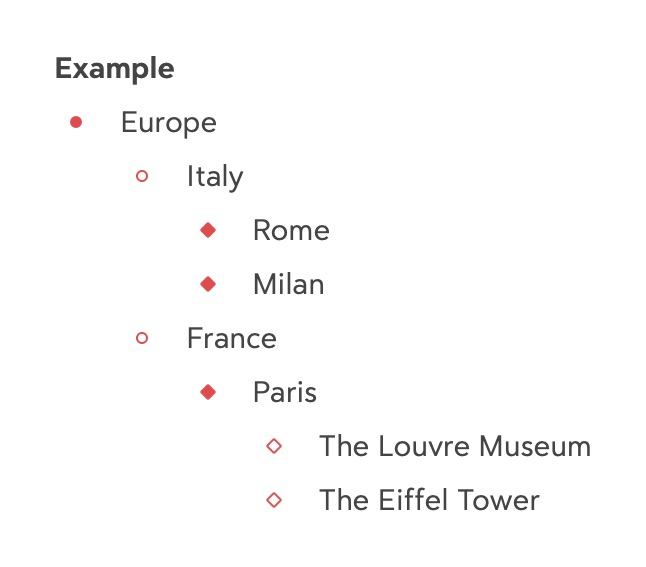
Nesting lists allows you to create structured lists and group sub-tasks under main tasks.
- Indent: Press Tab to move a list item one level deeper
- Outdent: Press ⇧ Tab to move a list item back to the previous level
- Limitless Levels: Bear supports infinite nesting, though 3 to 4 levels are recommended for readability!
Managing your lists
Reordering Items
You don’t need to cut and paste to move things around.
- Mac: Click and hold the bullet point or todo icon to the left of the text, then drag it to your desired position. Alternatively, you can use Shortcut ⌥⌘↑
- iOS: Move items with up/down arrow button in BIU keyboard
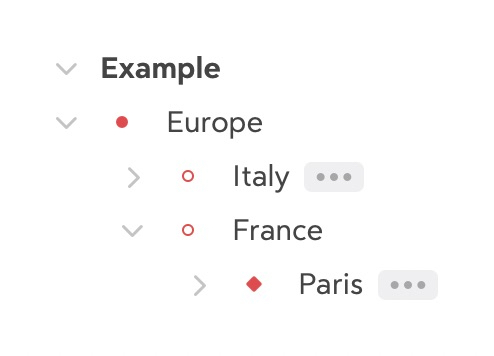
Folding Lists For long notes, you can fold (collapse) nested lists to stay focused.
- Mac: Hover over a parent item and click the folding chevron in the Side Action area (left margin). Click again to unfold.
- iOS: You can toggle list folding with Side Actions. By default, the Side Action buttons are hidden. You can toggle the Side Action buttons via ⫶ menu.
Ending a List
To exit a list and return to normal text, press ⇧ Return to move cursor to a new line without a bullet point. Alternatively, you can press Return 2 times to outdent the list item or close the list.