Customize Mac shortcuts
Return to support library
In macOS is possible to assign, or re-assign, a specific application function to a custom keyboard combination. This is particularly useful for if you are not satisfied with a Bear’s shortcut, a menu functionality is not accessible by keystroke or a global shortcut conflicts with an app. Custom shortcuts can be applied only to app’s functionalities available in the menu bar.
To create a custom shortcut:
- Open
System Preferences→Keyboard→Keyboard Shortcuts. - Select
App Shortcuts, click on the+button and selectBearin Application. - In the
Menu Titlefield, type the menu command for which you want to create a shortcut, as appears in Bear’s menubar (e.g.Preview in Marked). - Choose a keyboard shortcut for the menu command and click
Add.
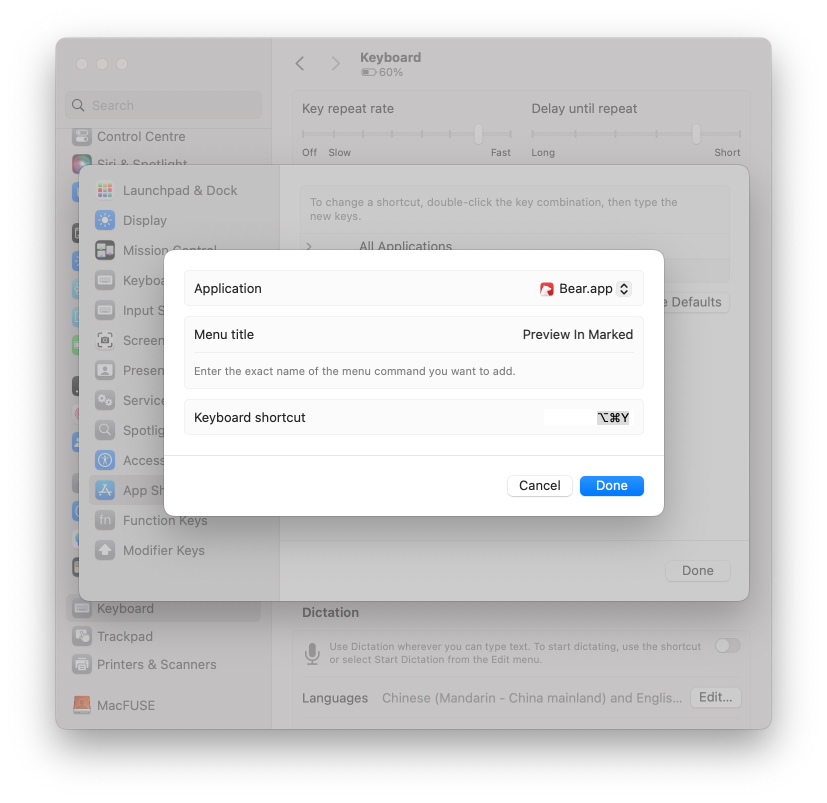
For more info Create keyboard shortcuts for App @ Apple.com.