# Bear Pro Sync Troubleshooting
> Learn how to solve Bear Pro sync issues. Here you can find a detailed list of possible sync issues solved to rapidly address your sync problems between your devices.
Source: https://bear.app/faq/sync-troubleshooting/
With [Bear Pro](https://blog.bear-writer.com/bear-pro-is-a-great-big-bear-hug-for-your-notes-code-and-prose-351cd60c0cc1), Bear automatically syncs your notes and edits to all devices; you don’t have to do anything.
You can check when the last sync happened in the Sync section of Bear’s Preferences. If you notice missing notes or updates, here are some troubleshooting steps you can try.
## Requirements
- A [Bear Pro](https://bear.app/faq/features-and-price-of-bear-pro/) subscription
- An iCloud account with enough free space for your notes and the files attached to your notes
- For iOS 16, iPadOS 16, macOS 14 and earlier releases
- iCloud Drive enabled on the device ([Apple has instructions](https://support.apple.com/HT204025) for Mac and iOS devices)
## Check Apple’s iCloud status page
Sometimes sync problems come down to iCloud having trouble. [Apple maintains a service status page](https://www.apple.com/support/systemstatus/) that is great to check if sync isn’t working.
## Confirm Setup
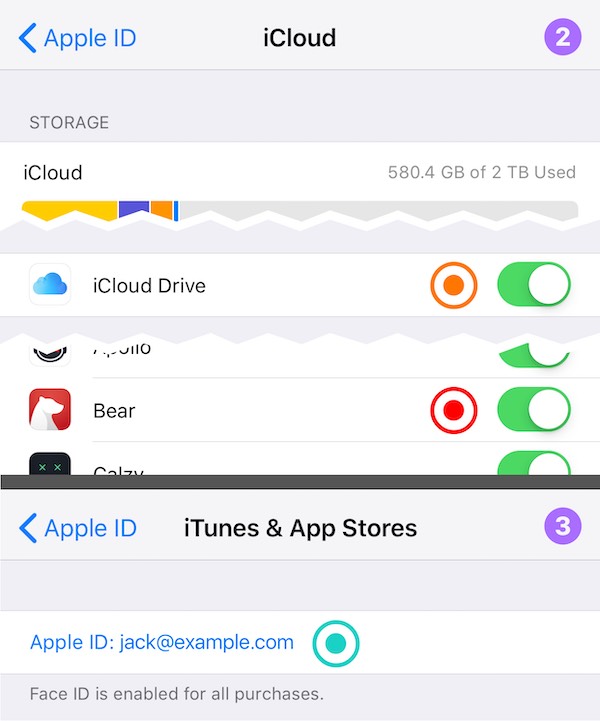
There are two accounts to check on your devices: the App Store account and the iCloud account. These accounts must be the same on all devices.
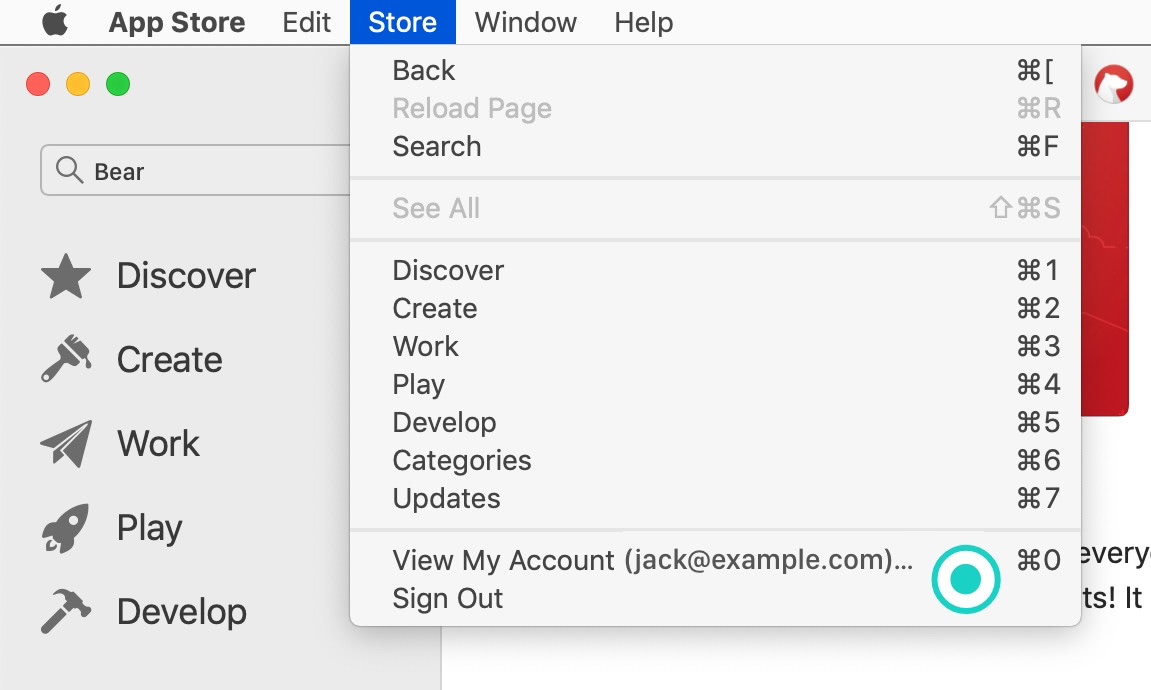
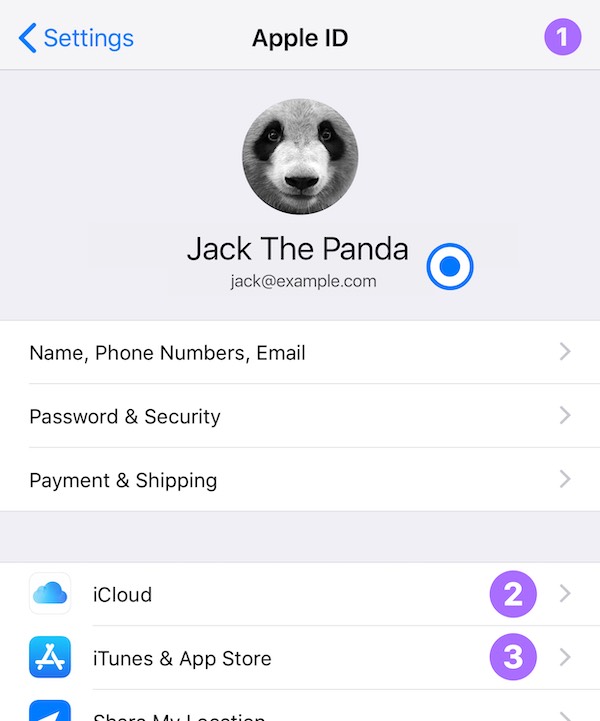
For example: you could be signed into iCloud with `my-apple-id@example.com` on all devices (marked with ◉ in the next screenshots), and also signed into the App Store with `app-store-shopping@example.com` on all devices (marked with ◉ in the next screenshots) and Bear synchronization will work like a charm.
There are also a few more settings to check, so let’s walk through them.
### Mac
To get the best, Bear-iest sync possible, please check the following settings:
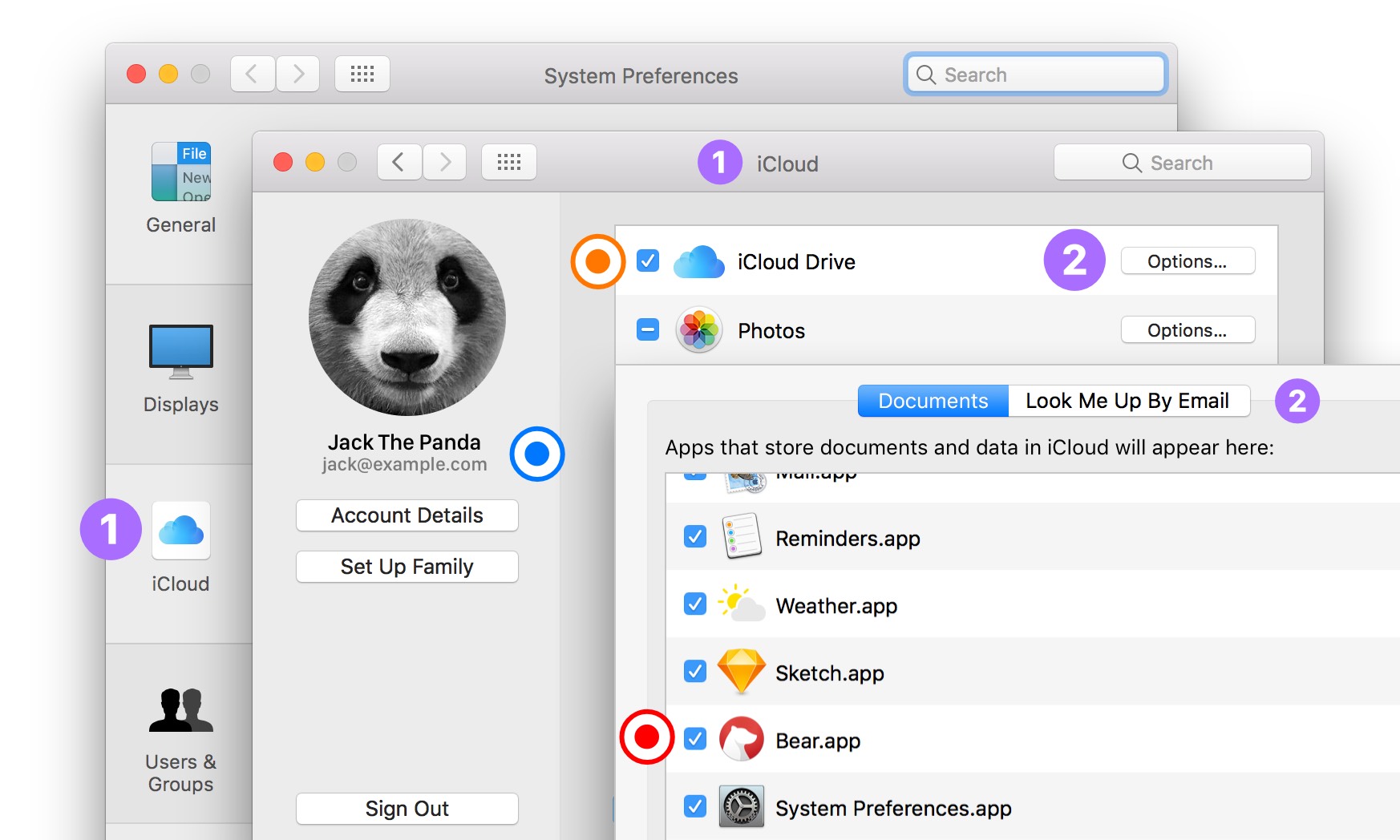
* you are signed into the `iCloud` Preferences Panel ◉ (❶)
* Bear has an enabled checkbox inside the “Options…” ◉ (❷)
* you are signed inside the `App Store` App ◉
* For macOS 14 and earlier releases
* iCloud Drive is enabled ◉ (❶)
### iOS
To get the best, Bear-iest sync possible, please check the following settings:
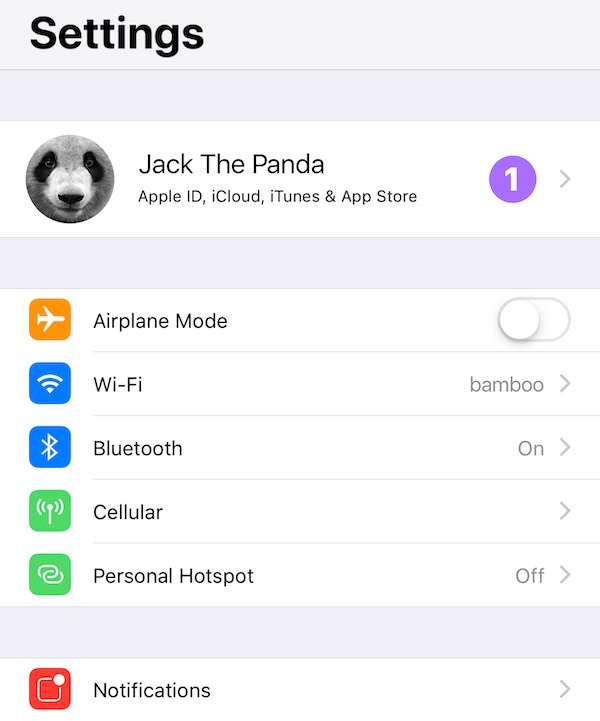
* you are signed into the `Settings` → `iCloud` Preferences Panel ◉ (❶)
(❷)
* you are signed into the `Settings` → `iTunes & App Store` Preferences Panel ◉ (❸)
* For iOS 16, iPadOS 16 and earlier releases
* Bear has an enabled checkbox inside the `iCloud Drive` Panel ◉
* iCloud Drive is enabled ◉ (❷)
* To ensure you can sync while on mobile data (and away from WiFi), go to **Settings \> Cellular**, scroll to the very bottom of that screen (past any apps listed there), and ensure that iCloud Drive is enabled.
## Same information across devices
On all the devices you are using Bear on, the accounts marked with ◉ and with ◉ should be the same based on color. Even better if you use only one account for everything!
## Now that I’m set up, how do I check the sync status?
There are two places where you can find the information about Bear’s sync status. The first one is inside `Bear Preferences` → `Sync`. There you can find the last sync date and the option to temporarily disable sync on that device.

Starting in Bear 1.7, you can check the current status of the synchronization process at any time in the sidebar. If Bear is currently syncing you will see a cloud icon with two arrows; this means that Bear will need some time to update your notes. If you are on iOS, we recommend leaving the app open until this icon disappears. This is the best way to let Bear finish the current sync operation.

If you see a strikethrough cloud icon, it means that the device is not connected to the internet, or that you have disabled sync from Bear’s preferences. Please check your internet connection and/or `Bear Preferences` → `Sync` if you want the device to sync.

The last icon you might see in this panel is a cloud with a red dot in your sidebar. This means that sync is experiencing other problems.
You can learn more about the current situation by tapping or clicking on all of these icons: usually a solution to the issue is presented inside the Sync Preference Panel. But if you still have sync problems, please contact [Bear support](https://bear.app/contact/).
If none of the icons is shown in the sidebar, Bear has sync harmony and you have the latest version of notes on the current device.
## About large note imports
If you imported hundreds or thousands of notes from text files or an archive from another app, it’s possible that Bear on iOS will need some time to finish its first sync. Please leave Bear for iOS open (not in the background) for a while to help it complete the sync. You can check the synchronization status as described in the [previous section](#now-that-im-set-up-how-do-i-check-the-sync-status).
This step is needed only in case of huge imports. Once it is finished, your Bear will sync faster and more often on a note-by-note basis.
The time needed for this initial sync to finish will vary depending on your internet connection. We recommend connecting to the fastest Wi-Fi hotspot you have available and wait until the cloud icon with two arrows disappears from the sidebar.
## The configuration is correct but the sync still doesn't work
In order to better understand what is going on, we need some logs from the device(s) that are not syncing properly. Here is how to generate these logs and send them to us:
Generate logs on **macOS**:
* select `Help` → `Enable File Log` menu item
* quit Bear using ⌘Q or `File` → `Quit` menu item
* open Bear
* wait for 1 minute **with an active internet connection**. It is very important to wait at least one minute in order to generate a sufficiently long Log.
* select `Help` → `Open Logs Folder` menu item
* zip the "Bear" folder by right clicking it and selecting `Compress "Bear"`
* send the zip archive to bear-support@shinyfrog.net with "Not working sync with proper configuration" as subject
Generate logs on **iOS**:
* enable `Preferences` → `Advanced` → `Enable File Log`
* quit Bear (swipe up from the bottom of the screen and pause in the middle of the screen, then swipe up on Bear’s preview to close the app)
* open Bear
* wait for 1 minute with an **active internet connection**. It is very important to wait at least one minute in order to generate a sufficiently long Log.
* `Preferences` → `Advanced` → `Share File Log`
* send it to bear-support@shinyfrog.net with "Sync not working with proper configuration" as subject
Please note that the logs can contain pieces of text of your notes. In a situation where sync isn’t working, this will not happen. But to better investigate your issue, we need every CloudKit transition to be logged. We have no interest in your private data and will not read or store any personal information. But we strongly suggest to edit any sensible part of your Logs with TextEdit or any other app. Usually if the log file contains pieces of notes, it means that the synchronization is working properly on that device and you'll just need to leave Bear open and allow the sync to finish (not in the background).
### Attachments Limits
Each attachment must be less than 250Mb to be synced between devices.
### Text limit
Notes larger than 500,000 characters will not be synced.