How to set a tag as Workspace
Return to support library
Bear allows you to set any tag as a dedicated workspace so you can focus on one area of your notes at a time. When a tag is set as Workspace, Bear filters the entire interface around it: the note list shows only notes under that tag, and the Sidebar tag list shows only the relevant tags that appear within those notes. Search results and Sidebar entries such as Archive and Trash are also filtered accordingly.
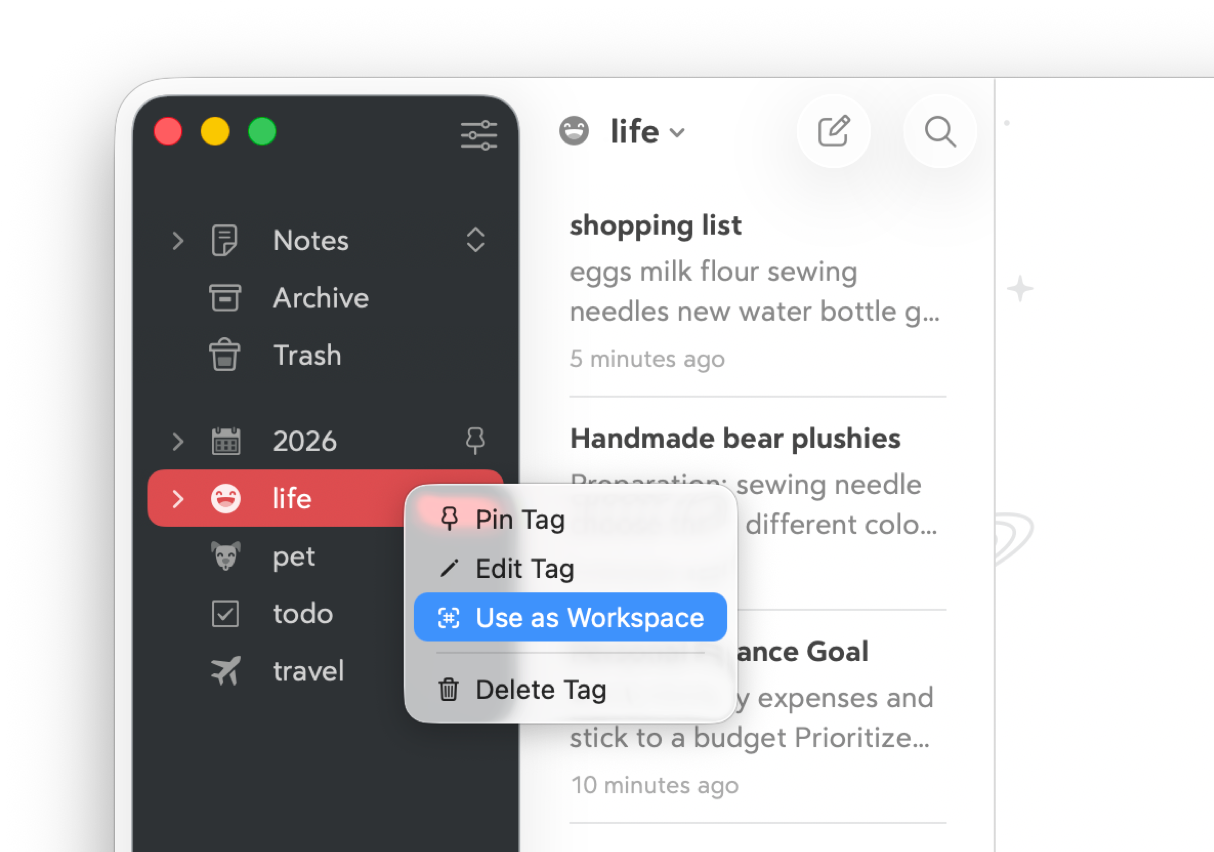
How to Set a Tag as Workspace
Right-click any tag or subtag in the Sidebar and select “Set as Workspace.” This works for any level of tag, including nested subtags. Setting a subtag as Workspace will filter notes to that specific subtag only.
How to Switch Between Workspaces
When a Workspace is active, the “Notes” entry at the top of the Sidebar is replaced by the active tag name. Click the double arrow icon to the right to open the Workspace menu, which contains:
- Notes — returns Bear to the standard default all-notes view
- Pinned — Pinned tags in the Sidebar
- Recent — tags you have recently used as Workspaces
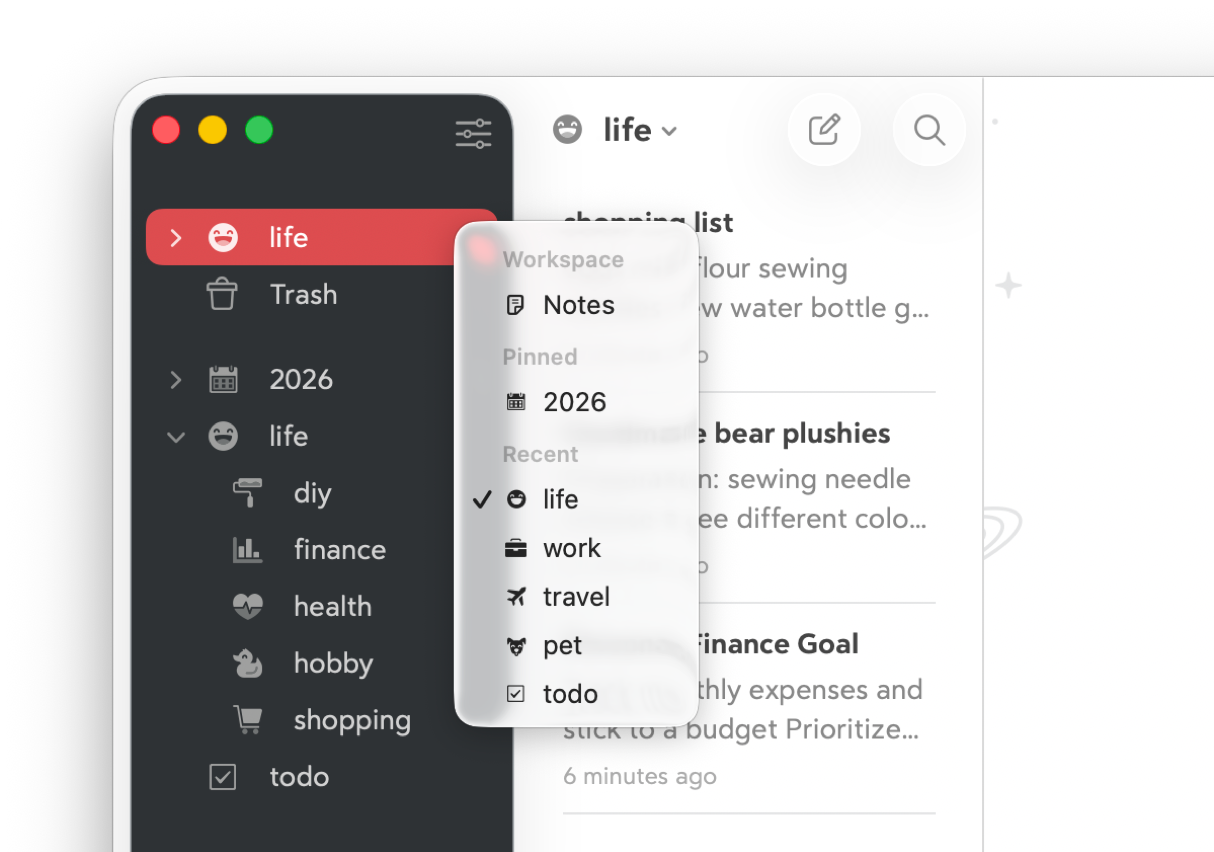
You can switch directly from one Workspace to another from this menu without returning to the all-notes view first.
How to Exit Workspace
To exit a Workspace and return to the full notes view, click the double arrow icon next to the active tag name and select “Notes” from the menu. Althernatively, you can go to the top menu bar and select “Dismiss Workspace” or use shortcut ⇧⌘0.