# How to Fold Sections in Bear
> Learn how to fold headings and multi-level lists in Bear notes on Mac, iPhone and iPad using Side Actions, the header menu or keyboard shortcuts.
Source: https://bear.app/faq/how-to-fold-sections-in-bear/
Bear supports folding sections to help you view and edit your notes better. You can fold headings (H1-H6) and multi-level lists, including to-dos. There are multiple ways to fold a section:
## Fold from Side Actions
Side Actions provide a quicker and easier way to fold sections with just one single click.
### Mac
- Move the cursor to the left side of the editor text
- Folding chevrons for collapsible sections will appear
- Click the chevron to toggle folding
### iOS
- Go to the more menu (⫶) on the top right in a note
- Select **"Toggle Side Actions”** in the menu
- Side Action icons will appear on the left side and remain visible
- Tap the folding chevrons to toggle folding
## Fold from Headers
You can fold heading sections from the header menu.

### Mac
- Click the Header icon next to the heading (H1-H6)
- In the menu, select **"Toggle Fold"** to fold or collapse the section
### iOS
- In editing mode, move the caret into a heading
- Tap the Header icon
- Select **“Fold > Toggle Fold”** to fold or collapse the section
## Fold Using Keyboard Shortcuts
Place the caret in the section you want to collapse, then use `⌘’` to quickly fold the section without your hands leaving the keyboard on Mac and iPad with external keyboard.
## Fold from BIU Keyboard (iOS Only)
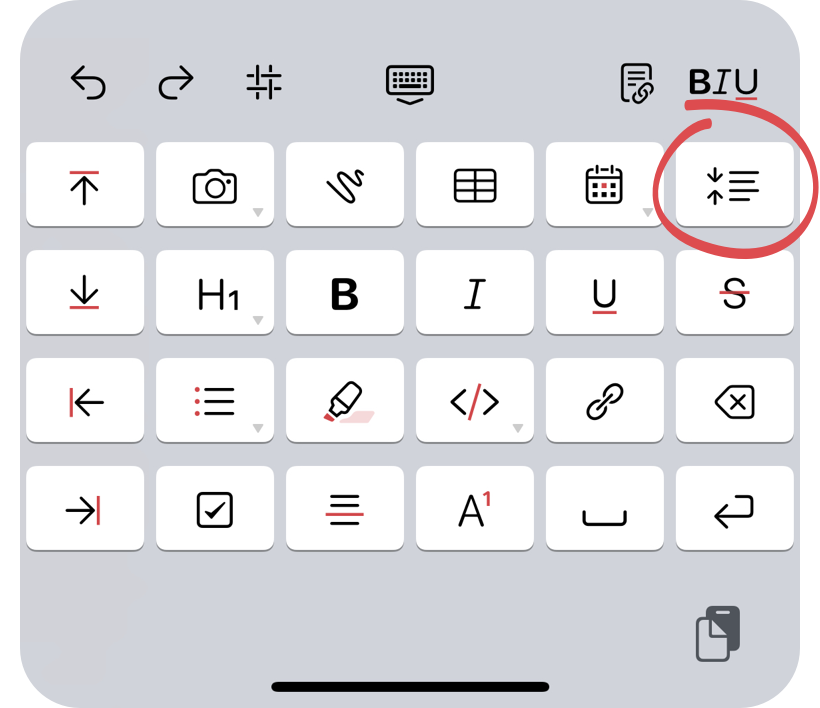
- On iOS or iPadOS, tap the **B*I*U** icon at the top right of the keyboard
- Tap the folding icon to toggle folding for the current section
## Other Notes
- You can fold and collapse all headers in a note at once from the header menu
- You can always toggle off the Side Actions on iOS to hide the Side Action icons
- You can also fold multi-level lists, including to-dos