Customize Bear keyboard shortcuts on Mac
Return to support library
macOS lets you assign, or re-assign, any app’s menu command to a keyboard shortcut of your choice. This is useful if you’d like a different shortcut than Bear’s default, if a command you use often has no shortcut, or if a shortcut from another app conflicts with Bear.
Custom shortcuts work for any Bear command that appears in the menu bar. For Bear’s built-in shortcuts, see the full list of Mac keyboard shortcuts.
How to add a custom shortcut for Bear
macOS Ventura and later
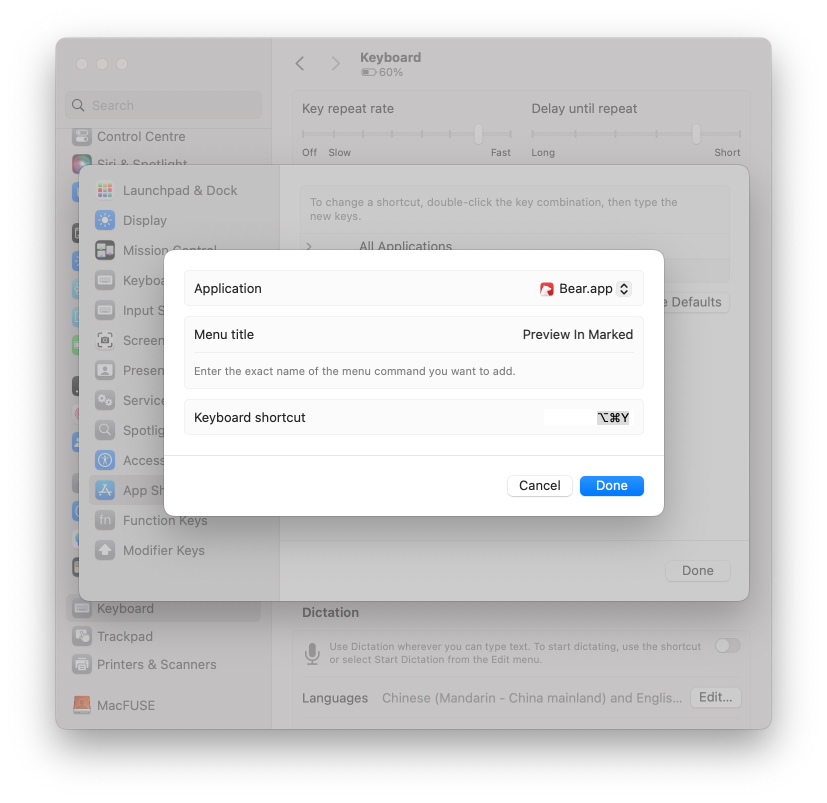
- Open System Settings → Keyboard, then click Keyboard Shortcuts…
- Select App Shortcuts, click the + button and choose Bear as the application
- In the Menu title field, type the menu command exactly as it appears in Bear’s menu
- Click the Keyboard shortcut field, press the key combination you want, then click Done
macOS Monterey and earlier
- Open System Preferences → Keyboard → Shortcuts
- Select App Shortcuts, click the + button and choose Bear
- In the Menu Title field, type the menu command exactly as it appears in Bear’s menu
- Choose a keyboard shortcut for the menu command and click Add
Tips & things to know
- The menu title must match Bear’s menu exactly, including capitalization and any trailing “…”
- To change or remove a custom shortcut later, return to App Shortcuts, then double-click the shortcut to change it, or select it and click – to remove it
For more details, see Apple’s guide to creating keyboard shortcuts for apps on Mac.